|
||||||
| Home | What's GiD | Download | Purchase | GiD Plus | Support | News/Events |
UNIX/Linux Installation
- Create a temporary directory. For instance: /tmp
- IF installing the download version of GiD: Download the file -install inside the directory you have just created.
IF installing GiD from USB:
- Insert the GiD USB.
- Go to the directory /install/linux/
- Copy the file gidxxxxxxxx-install from the USB to a temporal directory.
- Example: cp gidxxxxxxxx.tar.gz /tmp
- Make the -install file executable.
For instance: chmod +x gidxxxxxxxx-install
- Execute the install program: gidxxxxxxxx-install
- Follow the instructions that appear in the screen: it will copy the GiD program to the desired location and will try to create some links to the KDE and Gnome desktop.
Now GiD is entirely operational, except that meshes are limited to 1000 nodes and 25 surfaces. If you would like to use the full functionality of GiD without any limitations, you will need to obtain a GiD Password. For a limited period of time you will be able to obtain a 1 month password free of charge. In order to obtain a permanent GiD Password you need to purchase a GiD licence. As a GiD licence owner you will receive your personal licence number which entitles you to apply for a permanent GiD Password in the GiD Password page.
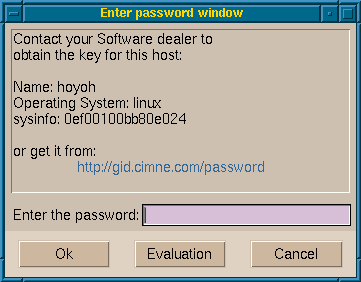
When GiD asks for a password you can:
- Continue working with GiD without a password. To do so press the Evaluation button. In this case the limitations described above apply ( to register later go to the help menu, register option).
- Get a 1 month password. Go to the GiD Password page, enter the information necessary and submit the form. Your password will be immediately displayed on the screen. Entering this password into the displayed dialog box will give you unlimited functionality of GiD for one month.
- Get a permanent password. Go to the GiD Password page, enter the information necessary, your personal licence number and submit the form. Your password will be immediately displayed on the screen.
Entering this password into the displayed dialog box will give you unlimited functionality of GiD.
| Installation of GID using tar.gz |
- Create a directory for the GiD package. For instance: /usr/local/lib/gid
NOTE: if you want to use an existing GiD directory, we recommend renaming
the existing directory: For instance: mv /usr/local/lib/gid /usr/local/lib/gid-oldIF installing the download version of GiD: Download the file tar.gz inside the directory you have just created.
- Uncompress this file and untar it: gzip -cd gidxxxxxxxx.tar.gz | tar -xvf -
- Run the script './install' specifying the directory where GiD has been uncompressed and untarred. For instance: ./install /usr/local/lib/gid
- If there were problems you can also copy and edit the file './gid.sample' in order to reflect the directories where GiD is installed.
- Create an alias, or put the directory into the variable 'path', so that, the script './gid' can be executed everywhere.
IF installing GiD from USB:
- Insert the GiD USB.
- Go to the directory /install/linux/
- Copy the file gidxxxxxxxx.tar.gz from the USB to a temporal directory.
- Example: cp gidxxxxxxxx.tar.gz /tmp
Now GiD is entirely operational, except that meshes are limited to 1000 nodes and 25 surfaces. If you would like to use the full functionality of GiD without any limitations, you will need to obtain a GiD Password. For a limited period of time you will be able to obtain a 1 month password free of charge. In order to obtain a permanent GiD Password you need to purchase a GiD licence. As a GiD licence owner you will receive your personal licence number which entitles you to apply for a permanent GiD Password in the GiD Password page.
When GiD asks for a password you can:
- Continue working with GiD without a password. To do so press the Evaluation button. In this case the limitations described above apply ( to register later go to the help menu, register option).
- Get a 1 month password. Go to the GiD Password page, enter the information necessary and submit the form. Your password will be immediately displayed on the screen. Entering this password into the displayed dialog box will give you unlimited functionality of GiD for one month.
- Get a permanent password. Go to the GiD Password page, enter the information necessary, your personal licence number and submit the form. Your password will be immediately displayed on the screen.
Entering this password into the displayed dialog box will give you unlimited functionality of GiD.